Connect to Seamless Docs
Connect to One Drive
Configure Form to OneDrive
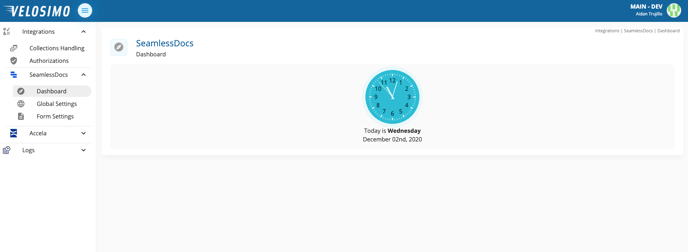
- Login to the Velosimo Connect Admin
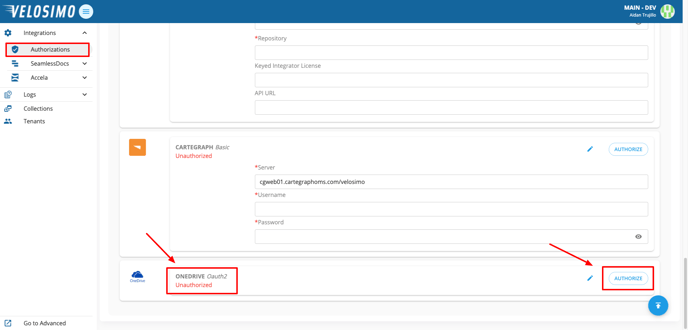
- Navigate to the “Authorizations” tab. Find OneDrive in the list. Click “Authorize”.
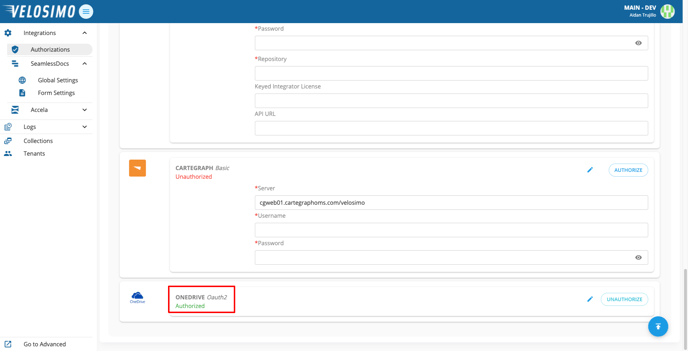
- You will be redirected back to the Authorizations page and OneDrive will be authorized.
Configure Form to OneDrive
- Navigate to “Form Settings” and select a form.
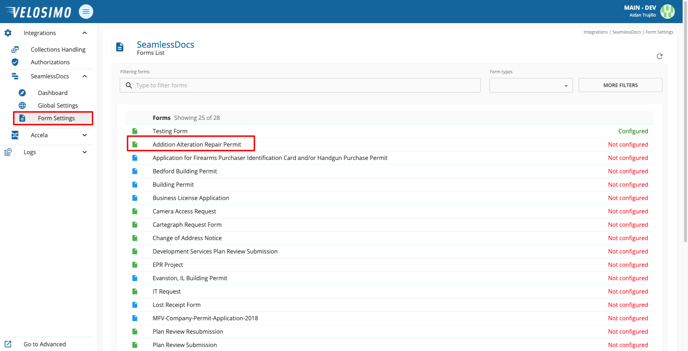
-
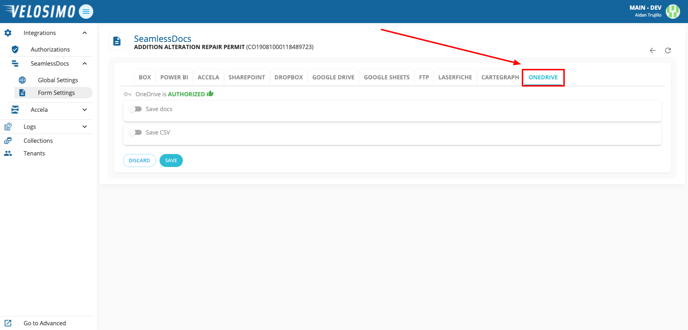
Select the “OneDrive” tab.
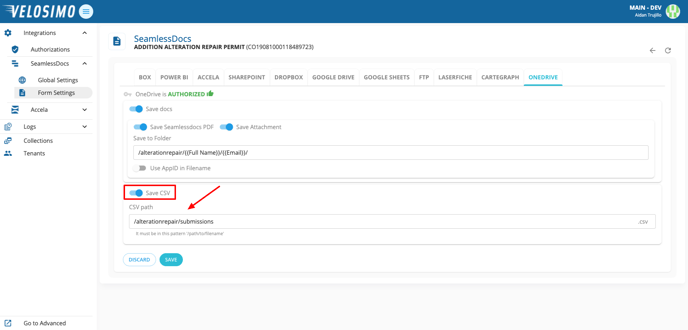
- Select “Save docs”. First enter the folder name, then create the file name with SeamlessDoc fields.
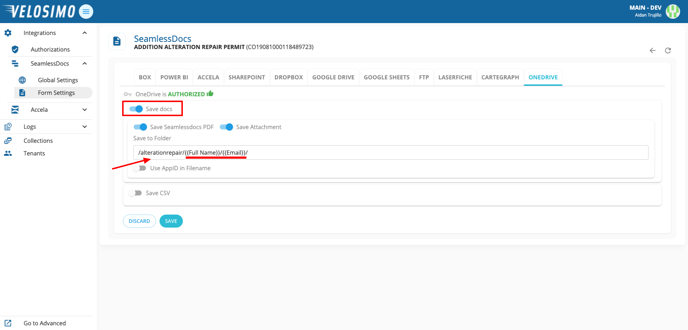
- Optionally, to save an entry to a CSV file select “Save CSV”. Enter the file path to the location you would like it saved in this pattern: ‘/path/to/filename’ . Once completed click “Save”.