PUBLISH REVIEW - Map SeamlessDocs Form to Sharepoint
- Note: All the SeamlessDocs Forms that have a Webhook configured in SeamlessDocs display in the Velosimo Connect App.
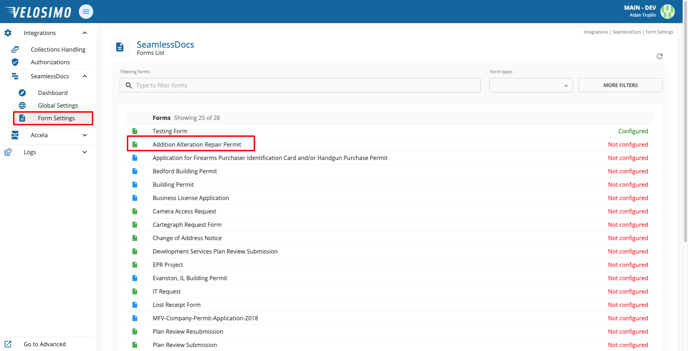
- Click on “Form Settings” and select a form.
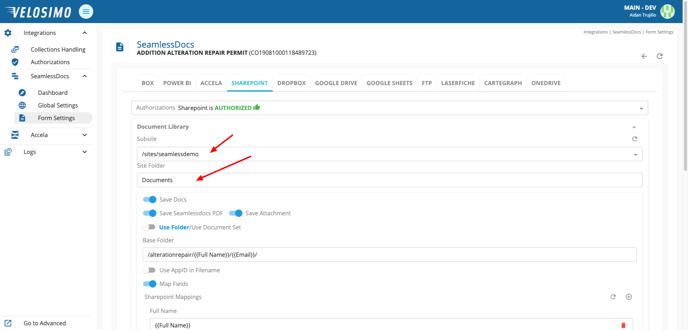
- Select the Sharepoint tab. Choose a Sharepoint subsite and enter the name of the site folder.
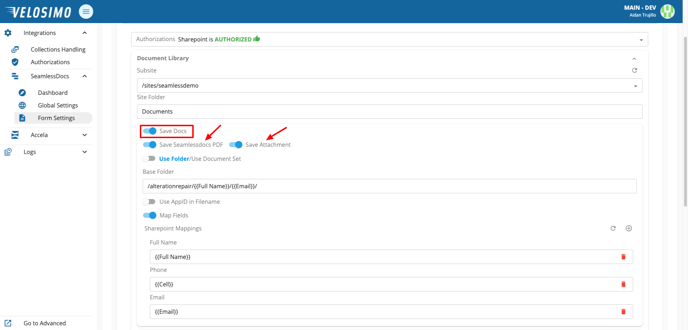
- Select “Save Docs”. To save additional attachments select “Save SeamlessDocs PDF” to save a .pdf file or “Save Attachment”. MORE DETAILS REQUIRED on TWO OPTIONS
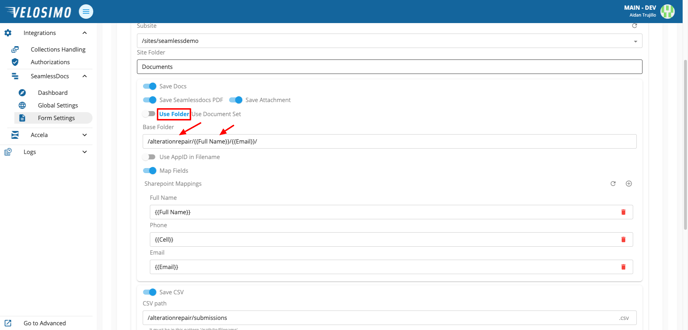
- There are two ways to save your documents, either into a folder or a document set. Use the slider on the left to select which setting applies to your use case.
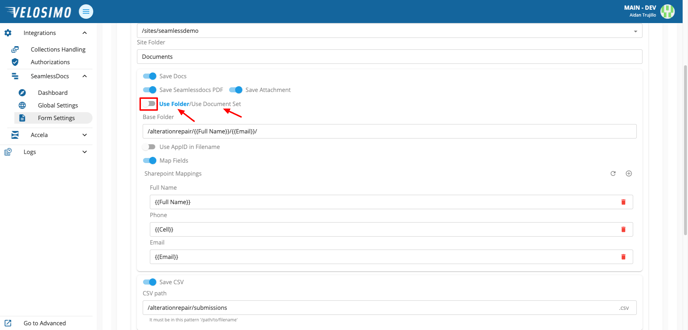
- First, we will go over how to set up saving to a folder. Set the slider to the left, highlighting “Use Folder”. Under “Base Folder” you will create the folder/file path with parameters. Use this pattern: /foldername/filename/.
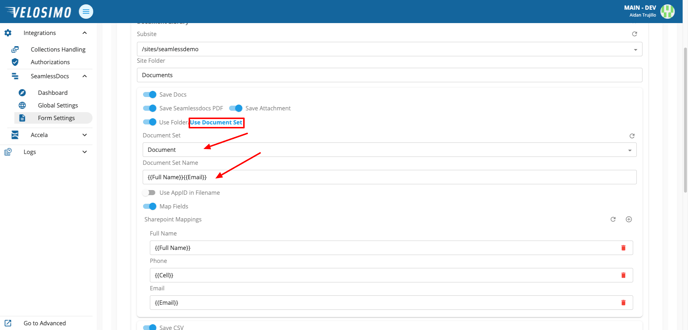
- Next, to save as a document set move the slider to the right, highlighting “Use Document Set”. Select the type of form, and enter parameters into the Document Set Name. This will create the name of the set.
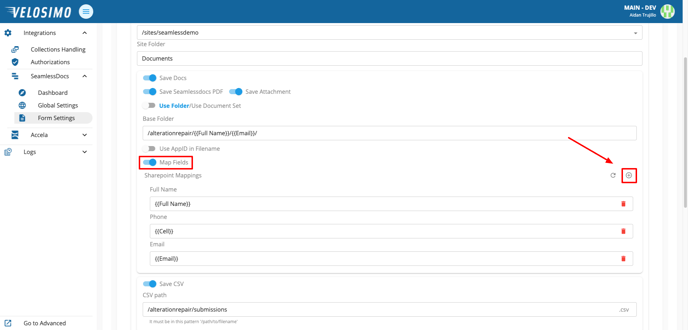
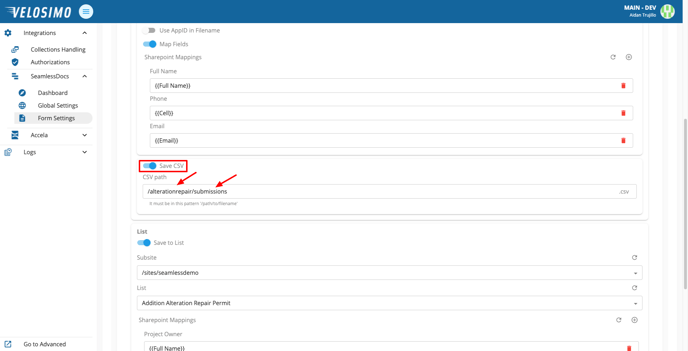
- Select “Map Fields”. Click the icon on the right to add mappings.
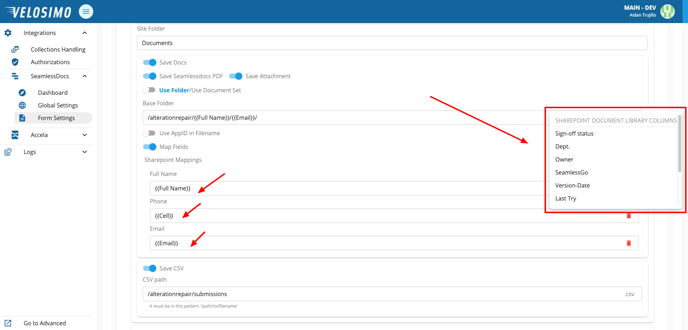
- Select a mapping from the list. Once you have selected your desired mappings fill in the forms with a SeamlessDoc field and configure them under “Sharepoint Mappings”.
- To save to a CSV, click the “Save CSV” slider. Enter the file path. It must be in this pattern: /path/to/filename.
- To save to a List, select “Save to List” and enter a subsite and the name of the target list. Click the icon on the right and select mappings for the list. Then fill in the forms with a SeamlessDoc field.
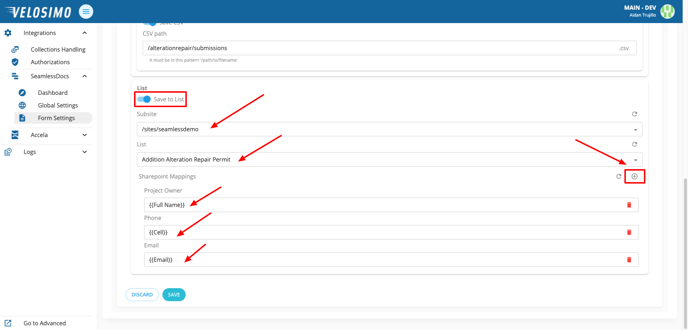
- Once completed click “Save”