Connect to Seamless Docs
Connect to Box
Configure Form to Box
Connect to Box
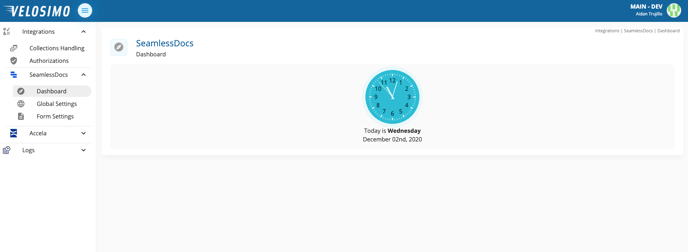
- Login to the Velosimo Connect Admin.
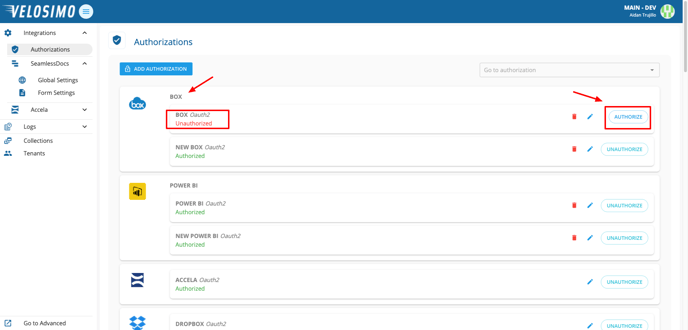
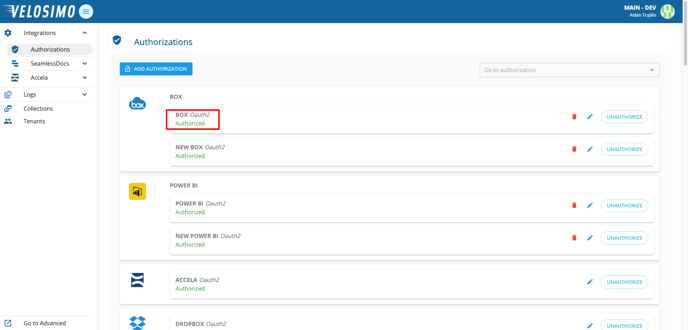
- Navigate to the “Authorizations” tab. Find 'Box' in the list. Click 'Authorize'.
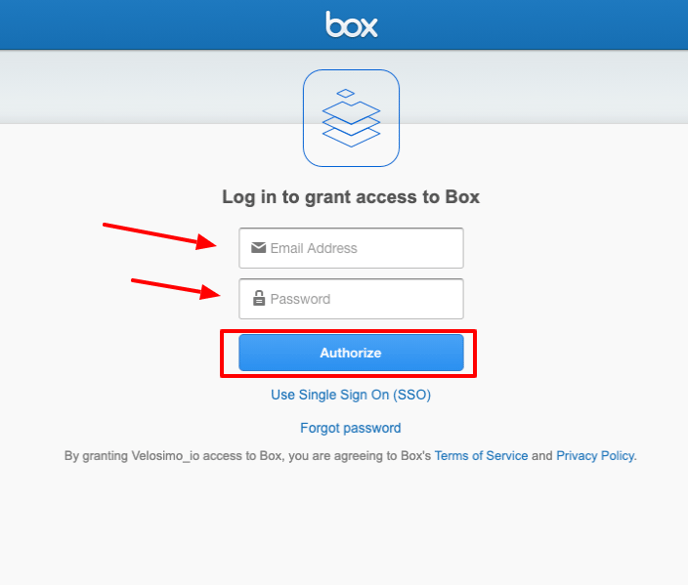
- You will be redirected to a login screen. Enter your email and password to your account and click 'Authorize'.
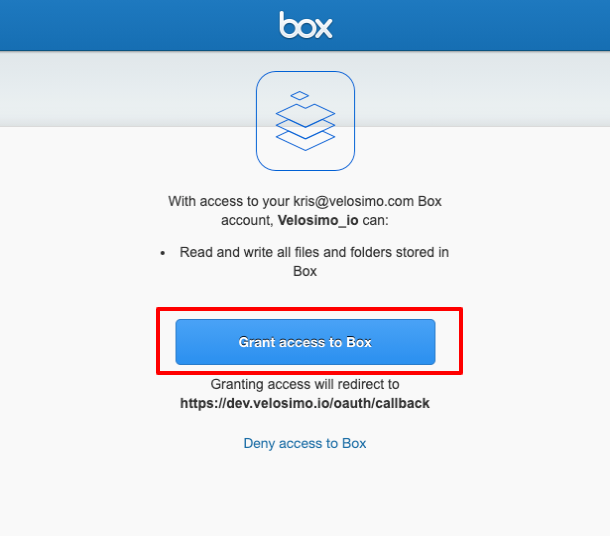
- When prompted to grant Box permissions click 'Grant access to Box'.
- You will then be redirected back to the Authorizations page and can confirm that Box is now authorized.
Configure Form to Box
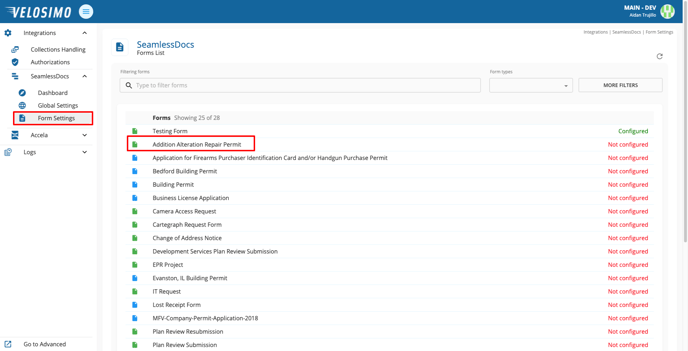
- Navigate to 'Form Settings' and select a form.
- Select the 'Box' tab.
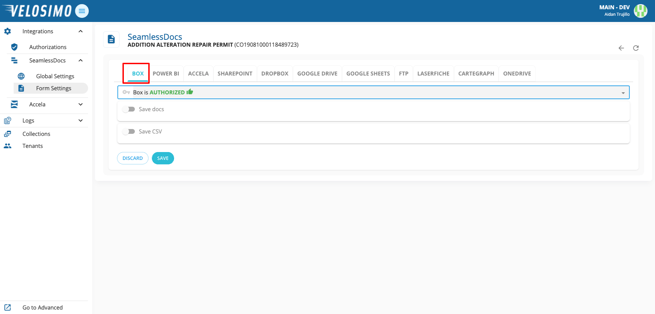
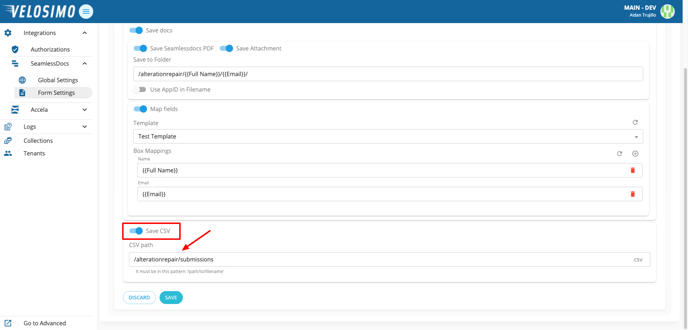
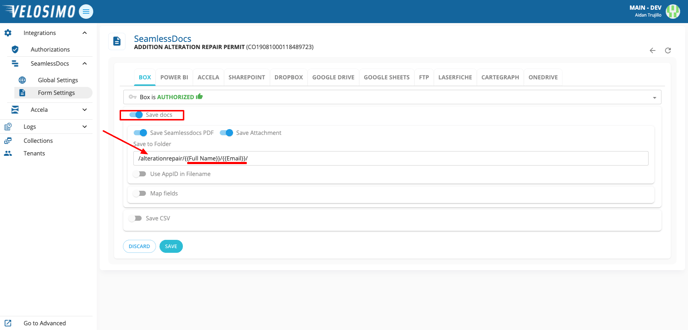
- Select 'Save docs'. Enter the folder name, then create the file name with SeamlessDoc fields.
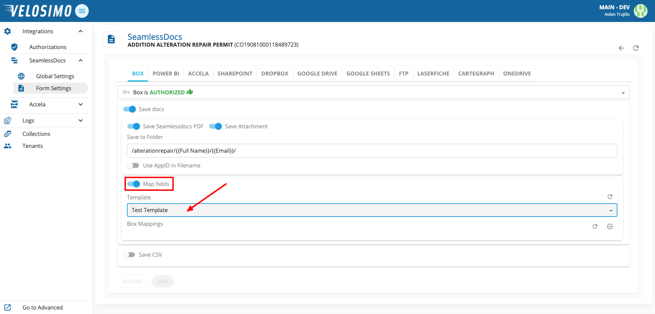
- Select 'Map fields' and select a template.
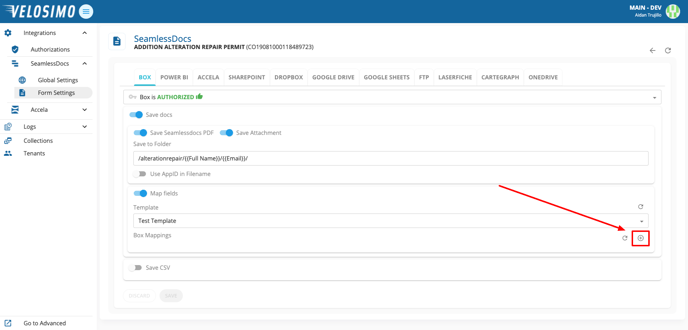
- To add mappings click the plus icon on the right and select the desired Box fields.
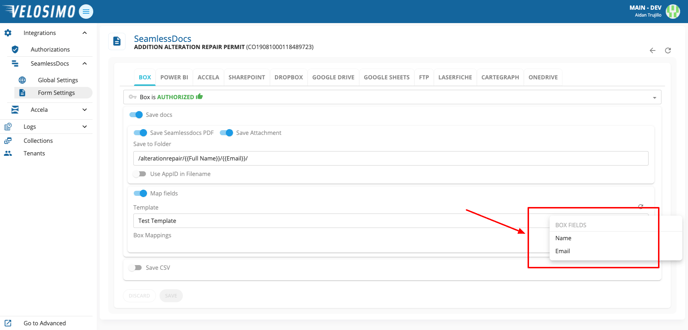
- Complete the mappings with the desired SeamlessDoc fields.
- Optionally, to save an entry to a CSV file select 'Save CSV'. Enter the file path in this pattern: ‘/path/to/filename’. Once completed click 'Save'.