
Connect to Seamless Docs
Connect to Accela
Configure Form to Accela
Configure Form to Accela
Forms Settings
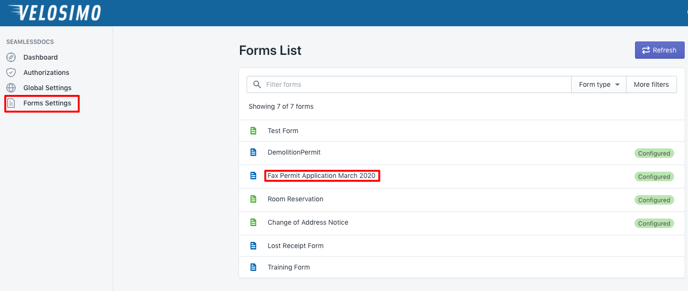
All the SeamlessDocs Forms that have a Webhook configured in the SeamlessDocs display as a list in the Velosimo Connect App.
- Select "Forms Settings" and select a form.
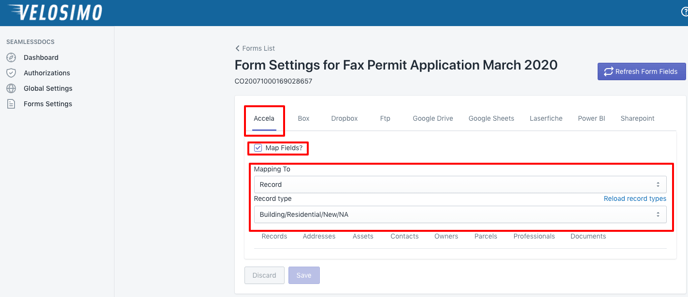
- The page will load on the Accela tab by default, next check the "Map Fields?" checkbox. For mapping select record and select then the record type.
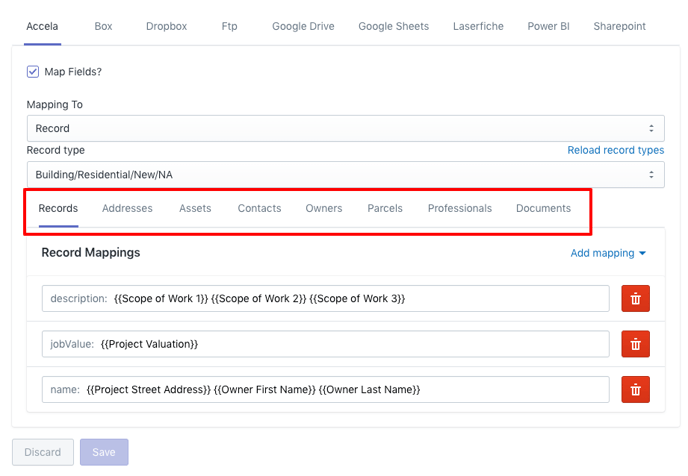
- Next, configure mappings in each tab.
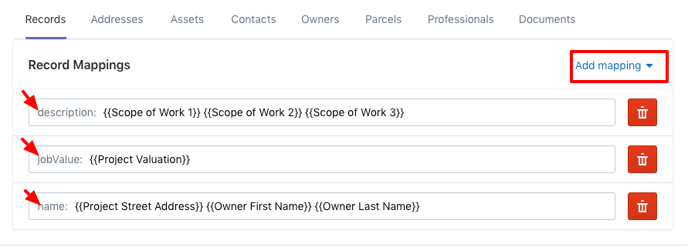
- Records Tab - Click 'add mappings' and select a field.
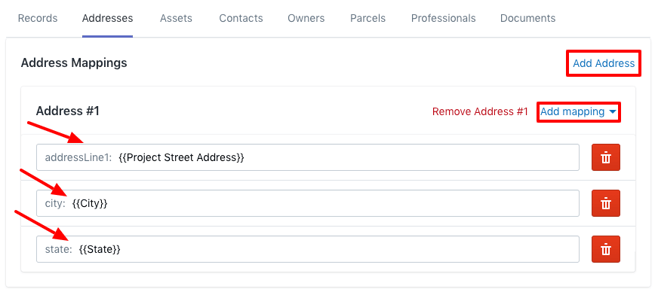
- Address Tab - Click 'add address' and 'add mappings'. Select desired fields.
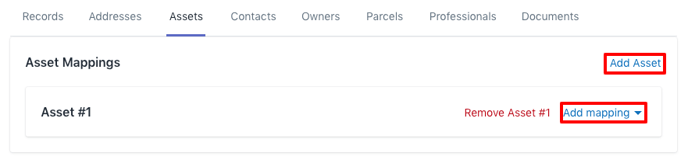
- Asset Tab - Click 'add assets' and 'add mappings'. Select desired fields.
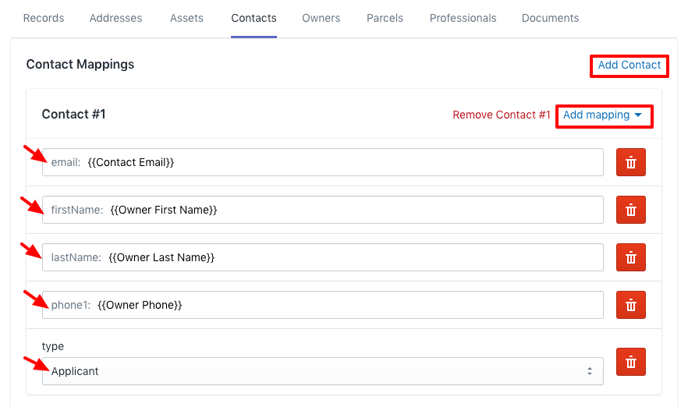
- Contact Tab - Click 'add contact' and 'add mappings'. Select desired fields.
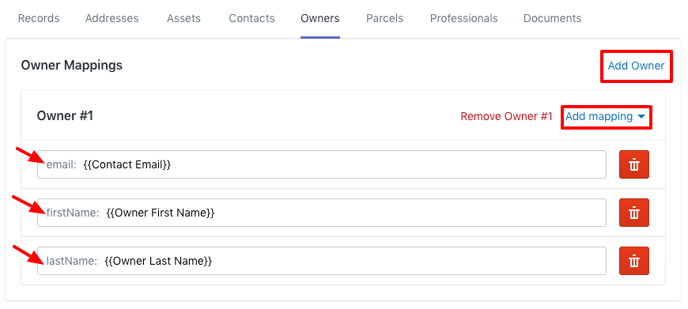
- Owner Tab - Click 'add owner' and 'add mappings'. Select desired fields.
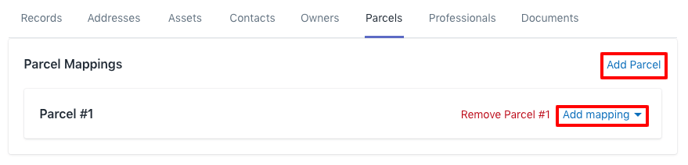
- Parcel Tab - Click 'add parcel' and 'add mappings'. Select desired fields.
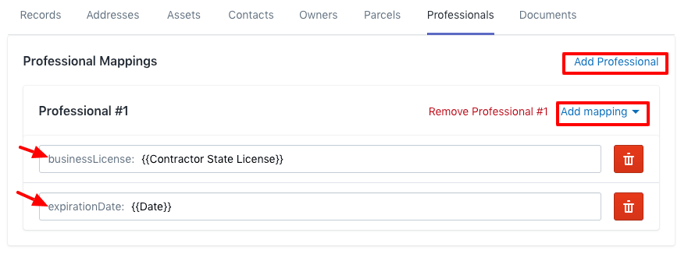
- Professional Tab - Click 'add professional' and add mappings. Select desired fields.
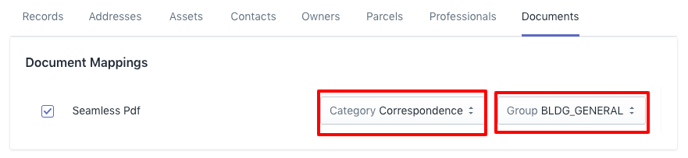
- Document Tab - Select a category and a group.
4. After configuring all settings, click Save.