Events, EMSE Scripts and Report Manager
- Velosimo Configuration
- Accela Configuration
- Solution
- Updating the Project ID
Events and EMSE Scripts
In the Accela scripts section, these four Velosimo scripts below need to be installed. All the Event scripts are editable if needed.
The GetUsers script needs editing with the agency SERV_PROV_CODE and departments.
The UPDATESUBTASKSTATUS scripts need editing. The ePlanSoft and Accela workflow tasks statuses will need to be updated with the correct statuses.
There are notes at the top of each file on what exactly needs to be changed.
Velosimo Scripts
-
GetDocuments
-
GetUsers
-
GetWorkflow
-
Velosimo_IncludesCustomAdditions
-
UPDATESUBTASKSTATUS
Event Script sample
-
WTUA
-
DUDA
Report Manager
Velosimo provides a URL report that has two tabs: Log and Users.
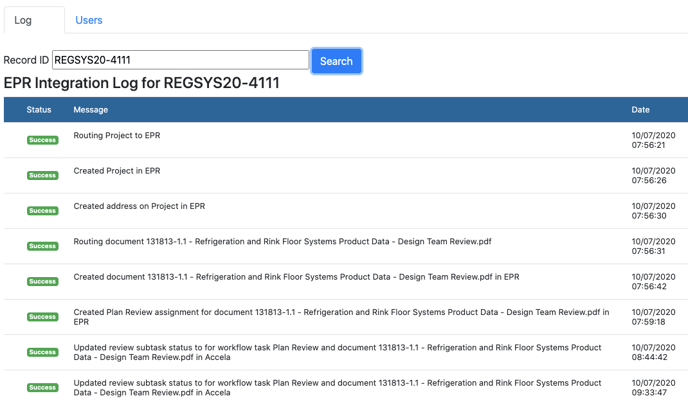
The Log tab shows the logging for a project. The report shows all the interactions between Accela and ePlanSoft. from the initial project creation, documents being passed in-between Accela and ePlanSoft, the creation and updates of the assignment, and finally, the deliverables passing from ePlanSoft to Accela.
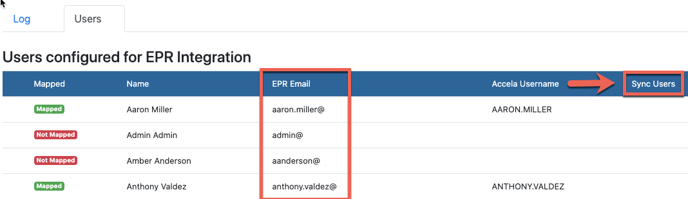
The Users tab displays a list of all the Users synchronized between Accela and ePlanSoft. Use this tab to manage users. There is a Sync Users button that will add and then synchronize the new users.
ePlanSoft Daily Admin
Create a URL report. Velosimo will provide this URL.
-
Go to the Accela Report Manager. V360 Admin > Setup > Report Manager
-
Go to the New Reports by Name. Right-click and select New Report
-
Name it EPR Daily Admin
-
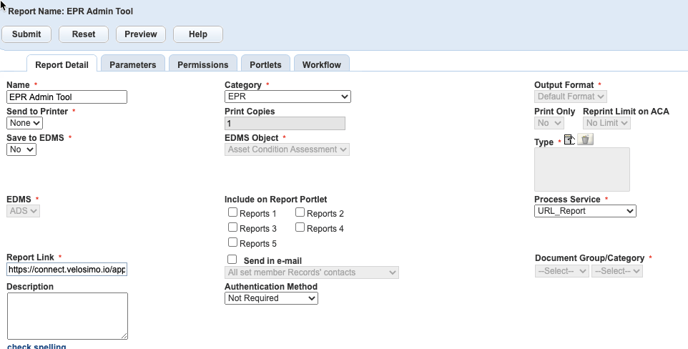
Create a URL report. The table below has the details to enter for each field.
-
Click the Submit button.
| 1 |
Report Detail |
Value |
Description |
| 2 |
Name |
EPR Daily Admin |
This setting is the same for every client.
|
| 3 |
Category |
TBD |
The agency determines this setting. |
| 4 |
Output Format |
Read-only |
This field becomes read-only when the Process Service is URL_Report. |
| 5 |
Send to Printer |
None |
|
| 6 |
Print Copies |
Read-only |
This field becomes read-only when the Process Service is URL_Report. |
| 7 |
Print Only |
Read-only |
This field becomes read-only when the Process Service is URL_Report. |
| 8 |
Reprint Limit on ACA |
Read-only |
This field becomes read-only when the Process Service is URL_Report. |
| 9 |
Save to EDMS |
No |
|
| 10 |
EDMS Object |
Read-only |
This field becomes read-only when the Process Service is URL_Report. |
| 11 |
Type |
Read-only |
This field becomes read-only when the Process Service is URL_Report. |
| 12 |
EMDS |
Read-only |
This field becomes read-only when the Process Service is URL_Report. |
| 13 |
Include on Reports Portlet |
TBD |
Determined by Agencies |
| 14 |
Process Services |
URL_Report |
This setting must be URL_Report. |
| 15 |
Report Link |
Velosimo provides the URL. It is unique for each agency and environment. |
|
| 16 |
Send in email |
Read-only |
This field becomes read-only when the Process Service is URL_Report. |
| 17 |
Document Group/Category |
Read-only |
This field becomes read-only when the Process Service is URL_Report. |
| 18 |
Description |
1. Sync the EPR and Accla users in Velosimo, and 2. View logging for projects. |
Enter a description of the report |
| 19 |
Authentication Method |
Not Required |
Set to Not Required |
Parameters
-
Go to the Parameters tab.
-
Click the New button.
-
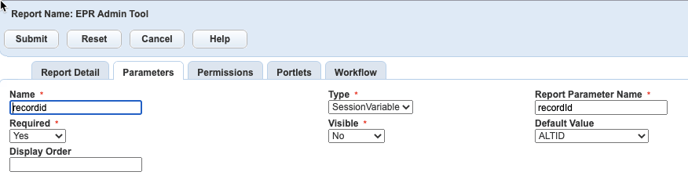
Create the recordid parameter The table below has the details to enter for the report.
-
Click the Submit button.
| 1 |
Parameters |
Value |
Description |
| 2 |
Name |
recordid |
This setting is the same for every client. |
| 3 |
Type |
SessionVariable |
This setting must be SessionVaraiable |
| 4 |
Report Parameter Name |
recordId |
This setting must be recordId. “recordId” lower case r for the word record and upper case I in the word Id |
| 5 |
Required |
Yes |
Velosimo recommends setting this to Yes.
|
| 6 |
Visible |
No |
Velosimo recommends setting this to No. |
| 7 |
Default Value |
ALTID |
This setting must be ALTID |
| 8 |
Display Order |
TBD |
This setting is optional. |
Log
The Log tab shows the logging for a project. The report shows all the interactions between Accela and ePlanSoft. From the initial project creation, documents being passed in-between Accela and ePlanSoft, the creation and updates of the assignment, and the deliverables sent from ePlanSoft to Accela.
-
Click the Search button.
-
Log results display.
User Sync
The Users tab displays a list of all the Users synchronized between Accela and ePlanSoft. The Users tab helps manage users:
-
Add new users
-
Synchronize users
-
Deactivate users
The users MUST have the same email on ePlanSoft as in Accela. If the emails do not match in-between the two systems, the user will not sync.
-
Click the Users tab
-
Click the Sync Users button on the far right of the menu bar.