Solution
- Velosimo Configuration
- Accela Configuration
- Solution
- Updating the Project ID
Solution
The integration between Accela and ePlanSoft follows the prototypical electronic plan review process. At each step in the review lifecycle, Velosimo provides seamless integration between Accela and ePlanSoft. A typical plan review process includes the following high-level tasks:
Project Overview/Workflow Process statuses
-
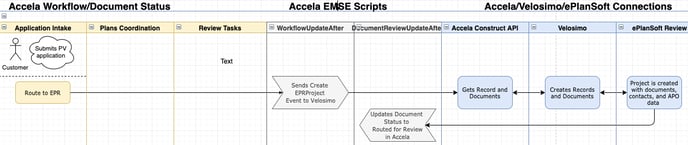
Application Intake - Project Creation - Route to EPR - Creates project and sends plans to ePlanSoft
-
Assign reviews - Routed for Review - This creates the Assignments in ePlanSoft
-
Perform reviews in ePlanSoft and update Accela tasks.
-
Deliverables
-
Corrections Deliverable - This sends back the marked-up plans and the corrections report.
-
Approved Deliverable - This sends back the approved and stamped plans.
-
Application Intake - Project Creation
The process begins with the customers (applicants) submitting new applications using Accela. Applicants or agency staff will attach electronic plans to the applications.
Project Overview/Workflow Process statuses
-
Application Intake - Project Creation - Route to EPR- Create a project and sends plans to ePlanSoft
Project Creation diagram
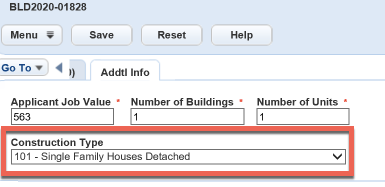
Prerequisites: The Additional Information field Construction Type is required. Agencies that do not currently use this field set the value to N/A on the applicationsubmitafter event in Accela. If this field is blank, the integration will not work.
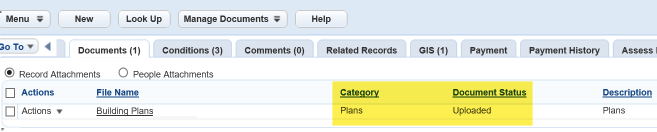
There must be plans attached to the documents tab. There are two standard choices, EPR_DOCUMENT_CATEGORY and DOCUMENT STATUS, that map to tables in Velosimo where the documents and statuses are mapped. See the Accela Configuration section for more details.
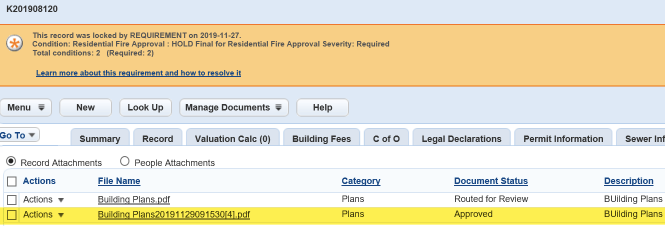
In the below screenshot, the Plans are in the Uploaded status attached are routed to EPR. Any other attached documents are not sent to EPR because they are not mapped to the EPR_DOCUMENT_CATEGORY standard choice in Accela.
Any other documents attached are not routed to EPR other than those in the configured EPR_DOCUMENT_CATEGORY standard choice.
Action: To initiate the routing update, the Application Intake workflow task with the Route to EPR status. Updating the workflow starts the routing process in Velosimo.
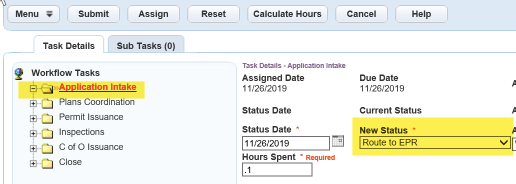
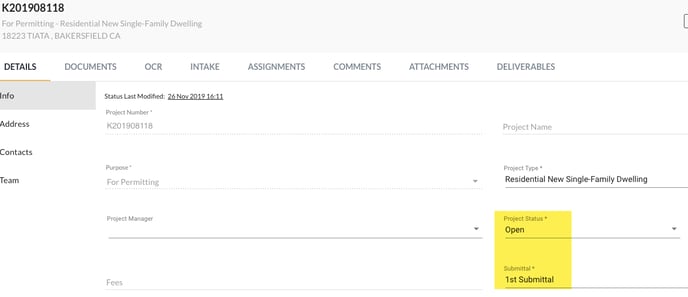
Creating the project in EPR
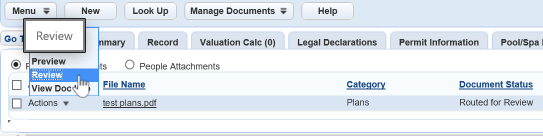
The second flow sends the document to EPR and updates the document status in Accela. After the documents pass from Accela to EPR, the document status is updated to Routed to EPR. At this point, you can access the project in EPR by clicking the Actions button>Review link on the BLD Plan Review document.
Troubleshooting/Review: The EPR- Integration Log report will provide users details of the activity in Velosimo and the status of the application. Below is a screenshot of a project that was just route to EPR.
Assign Reviews - Create Assignments
The next step in the integration is routing the document for review by creating the assignments in EPR and the subtask on the Accela workflow tasks.
Create Assignments Flow diagram
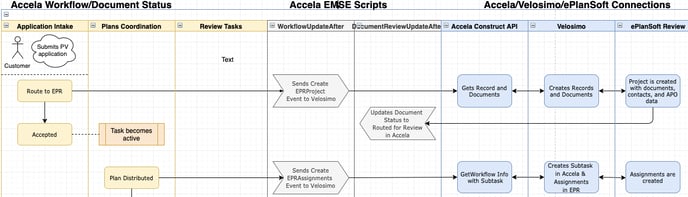
Prerequisites: The Application Submittal task needs to be updated to the Accepted status.
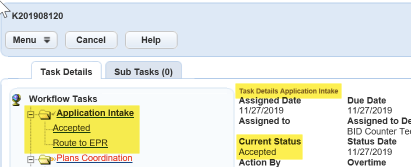
Action: Updating the Assignment task to the Route status routes the document for review and creates the assignments in EPR.
Accela Workflow
All the Review tasks that are marked answered Yes become activated.
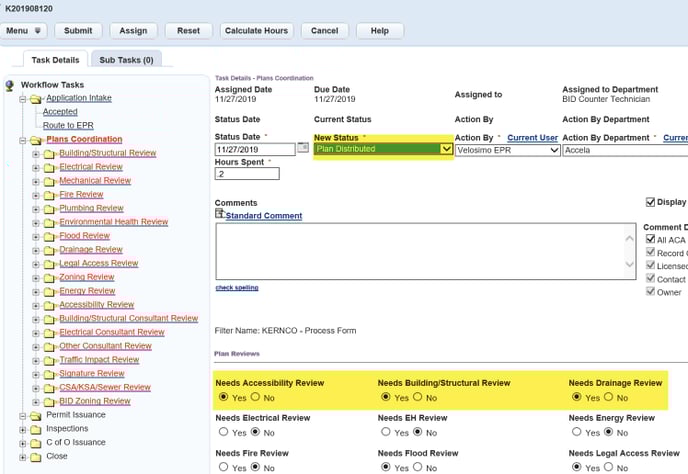
The BLD Plan Review document is attached, and the Velosimo flow executions run to create the corresponding assignments in EPR for each review task.
Clicking the Review link on the Review subtask displays the assignment in EPR.
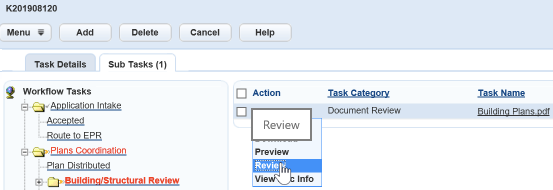
ePlanSoft Assignment
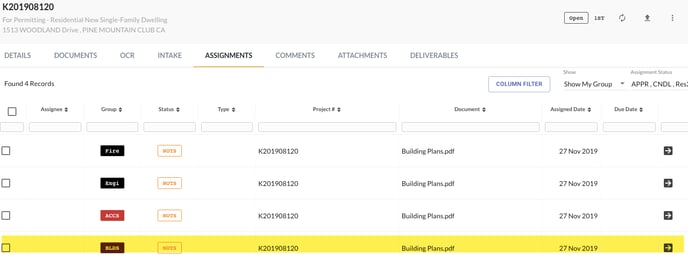
Update Workflow Task - Assignment Status Updates
To review and update the assignment in EPR, go to the assignment and click on the Go to Review Page button.
ePlanSoft Assignments tab
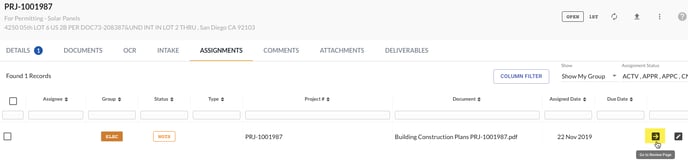
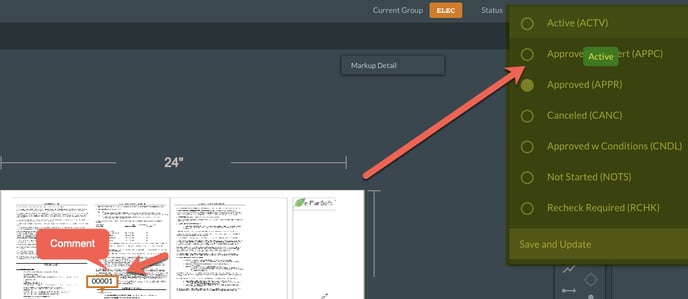
The document review page opens in a new tab. Users can mark up the document with comments, drawings, stamps, etc.
ePlanSoft Review Page
Corrections Deliverable
After the plan review task is complete in EPR, the user will then update the Assignment task status to Disapproved in Accela after they finished the review in EPR.
ePlanSoft Assignments
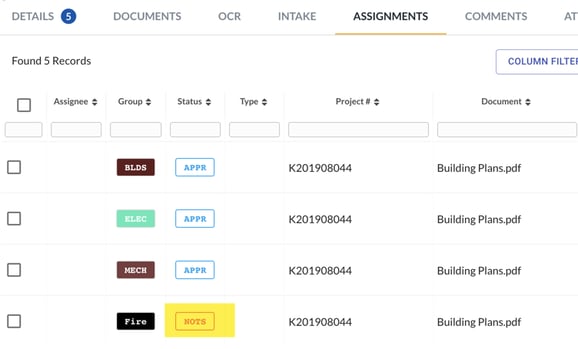
The Assignment that was in Correction Required status is updated back to the Not Started status.
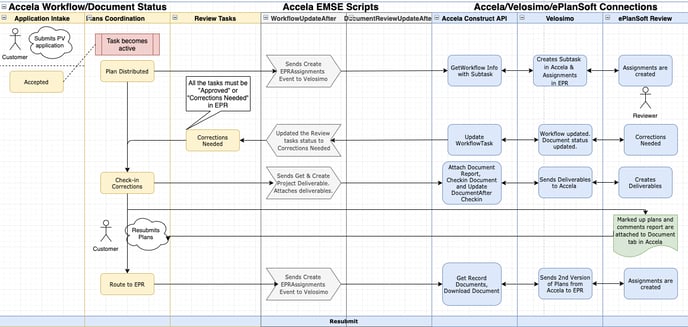
Corrections Required Flow diagram
Prerequisites:
-
All the EPR review tasks must be updated to Approved, Approved w Comments, or Corrections Required for the marked-up version of the plans sent from EPR back to Accela.
-
Customers must upload the second version of the plans.
Action: Update the EPR assignment to the Corrections Required status; it updates the corresponding Accela workflow Review task to the Disapproved status, the tasks stay active.
ePlanSoft Assignment tab
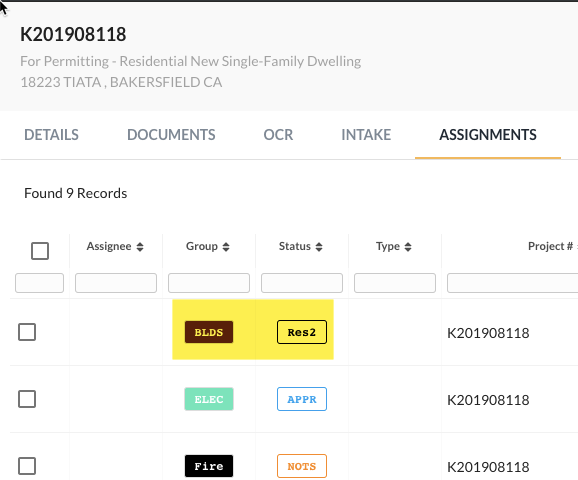
ePlanSoft Assignment
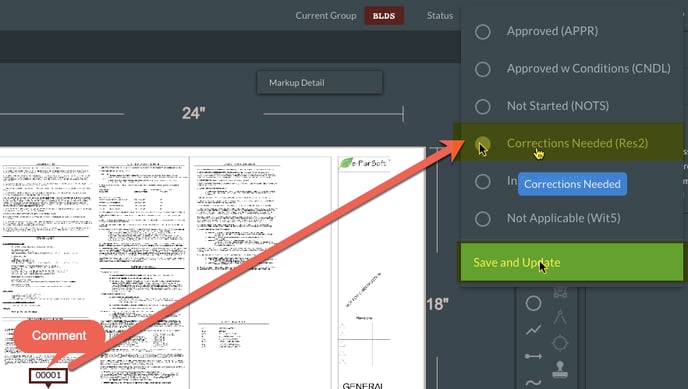
Accela Workflow
-
User updates the Assignment task to Check-In Corrections. This update runs the corrections deliverable code and sends the marked-up plans and the comment report from EPR to Accela.
-
User updates the Assignment task to Route to EPR. Documents
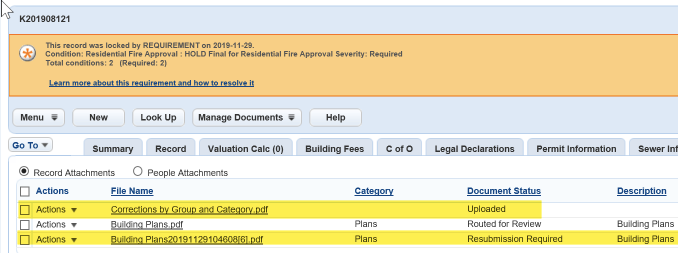
One corrections report and the marked-up version of the plans are attached to the Documents tab in Accela.
-
In the below screenshot, the marked-up BLD Plan Review is in the Resubmissions Required status, and the Comments Report is in the Uploaded status.
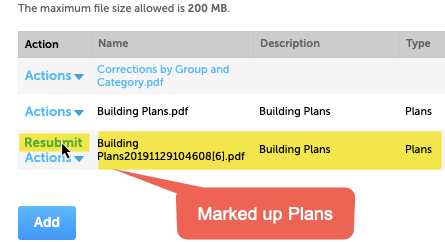
The screenshot below shows the marked-up version of the plans in Accela Citizen Access with the Resubmit link.
-
The below screenshot shows the marked-up BLD Plan Review is in the Routed to EPR status, and the 2nd version of the BLD Plan Review is in the Uploaded status.
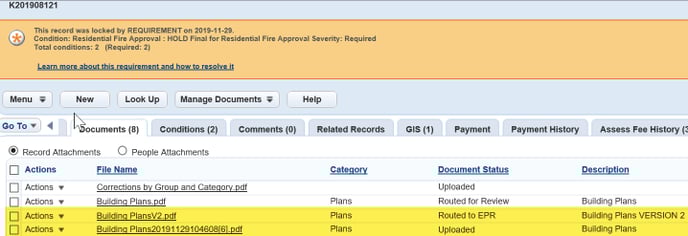
-
In the below screenshot, the marked-up BLD Plan Review is in the Revisions Uploaded status, and the 2nd version of the BLD Plan Review is in the Revisions Uploaded status.
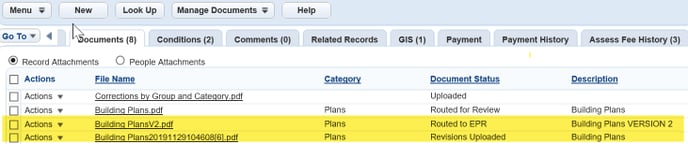
Upon updating the task in Accela, you can review the activity in the EPR- Integration Log report. In the highlighted example of the Integration Log below, the three Velosimo Flow Executions run. The first flow triggered ePlanSoft| Get Project Documents creates the marked-up plans document, ePlanSoft| Create Project Deliverable creates the deliverable, and ePlanSoft| Get Deliverable sends the marked-up plans and comments report back to Accela.

Approved Deliverable
Once all of the Assignment review tasks are completed, the Accela Workflow update delivers the Approved plans.
Approved Deliverable Flow diagram
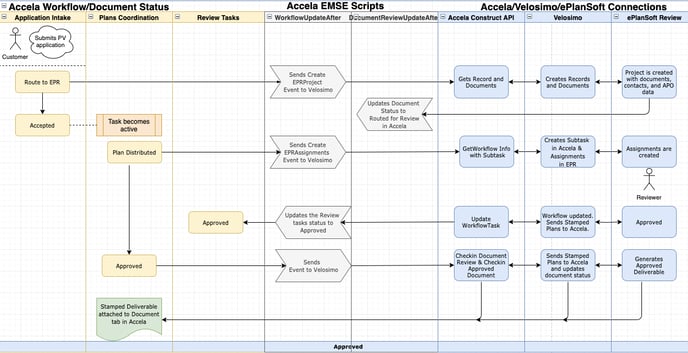
Prerequisites: All the Review tasks need to be completed. The EPR review tasks need plan reviews completed in EPR and the status updated to Approved.
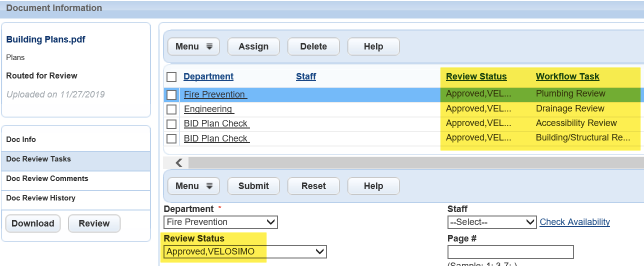
When the reviewer updates the assignment in EPR, the Velosimo flow execution Accela| Update Workflow Task runs. Update the Accela review tasks workflow status to Approved No Comments/Approved with Comments and update the subtask/document status to Approved No Comments/Approved with Comments. (UserName) .
All the non-EPR review tasks need to be updated to Approved No Comments/Approved with Comments in Accela.
ePlanSoft Assignment
In this example, the assignment status in EPR is updated to Approved.
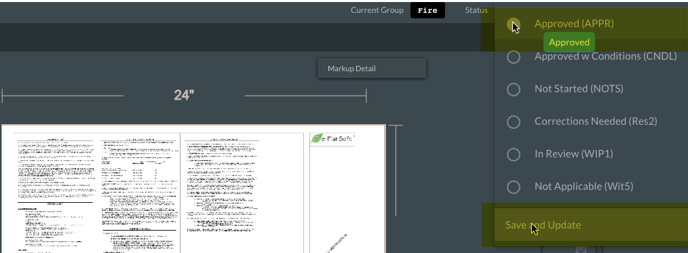
These are all the assignments completed in EPR.
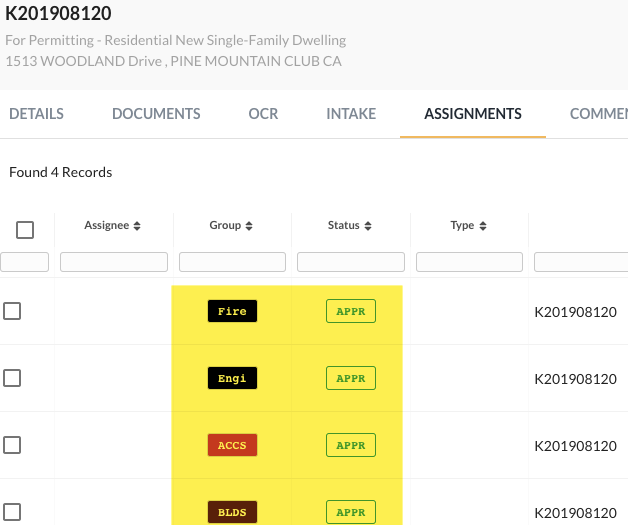
Review Tasks and Review Subtasks
The review tasks are updated via EMSE code to Approved No Comments/Approved w Comments.
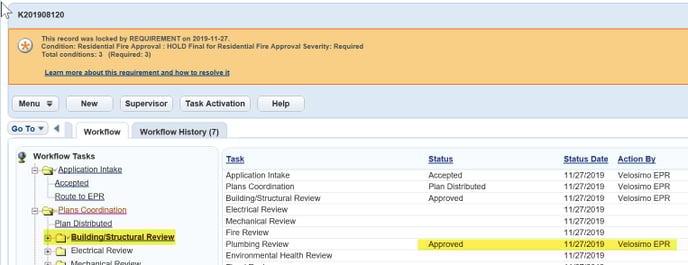
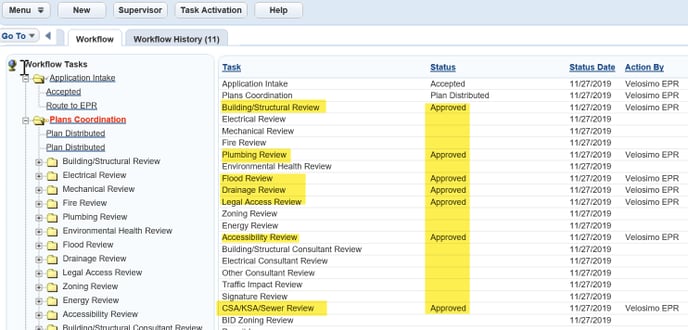 ction: Updating the Assignment task to the Approved sends the approved plans back to Accela from EPR. The Velosimo flow executions below run.
Accela Workflow
User updates the Assignment task to Approved.
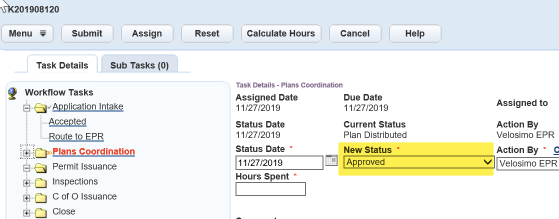
Project Review tasks
Documents
The approved and stamped plans are attached to the Documents tab in Accela.