
Updating the Project ID
- Velosimo Configuration
- Accela Configuration
- Solution
- Updating the Project ID
Updating the Project ID
Occasionally the EPR or Accela API will fail and cause a project to get created in Velosimo without a Project ID in Velosimo. To fix this go to the project on ePlanSoft and find the Project ID.
ASTI21-00639
-
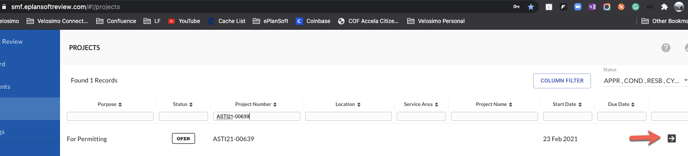
Search for the Project in ePlanSoft. Click the arrow button to open the project.
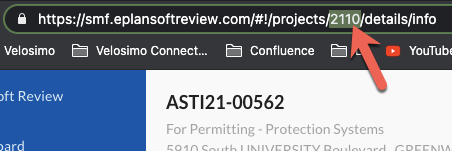
2. The Project ID displays in the URL.
3. Go to Velosimo Data>Objects>ePlanSoft>Projects
4. Search for the project by the Project number
5. Click the three black dots on the right side of the Project. Click the Edit button.
6. Update the Project ID and click save.