Connect to ePlanSoft
- Velosimo Configuration
- Accela Configuration
- Solution
- Updating the Project ID
Connect to ePlanSoft
Before the Velosimo can connect to ePlanSoft, the Partners setting in ePlanSoft needs updated with the Velosimo user and the Velosimo tenant key and token.
Watch how to set up the Velosimo partner in ePlanSoft.
-
Login to the ePlanSoft site.
-
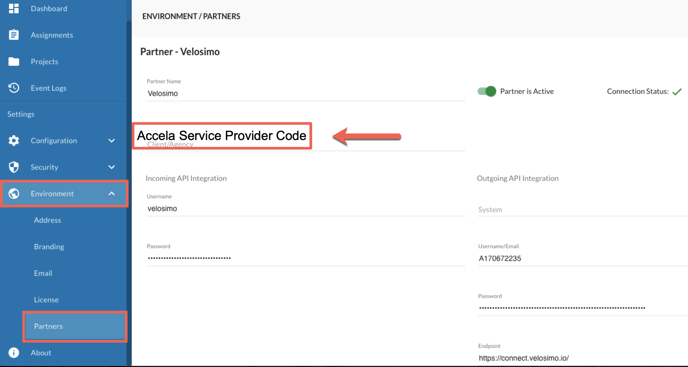
Go to the Environment > Partners
-
Enter Velosimo in the Partner Name field
-
Enter the Agency Accela service provider code.
-
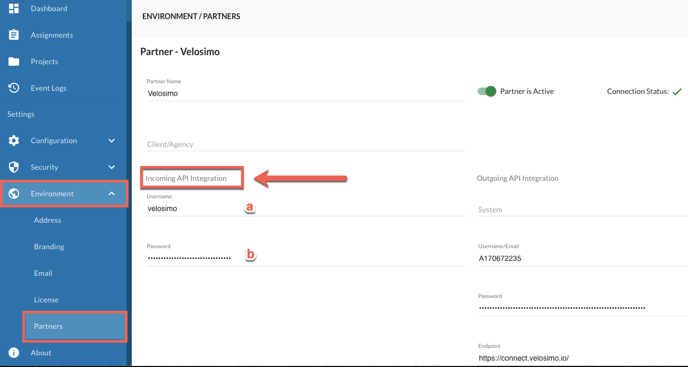
Configure the Incoming API Integration information:
-
Username: Velosimo
-
Password: TBD
-
-
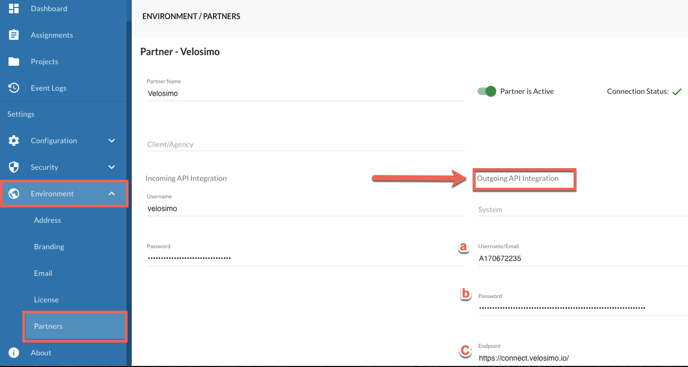
Configure the Outgoing API Integration Information:
-
Username/email: <Velosimo Tenant Key>
-
Password: <Velosimo Tenant Token>
-
EndPoint: https://connect.velosimo.io
-
-
Click the Save button in the upper right corner of the screen.
Now that the Velosimo Partner is in ePlanSoft, we can connect to Velosimo.
Connect ePlanSoft in Velosimo
There are two places in Velosimo where the ePlanSoft URL needs to be updated before connecting.
-
Connectors
-
Sessions
Connections
Watch how to update the ePlanSoft connection URL.
-
Go to the Connectors. Gateway>Connectors.
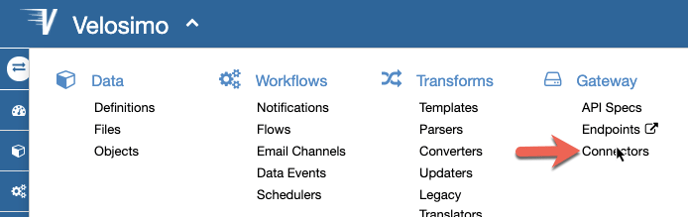
-
Click on the three black dots next to the Connections box. Click List.
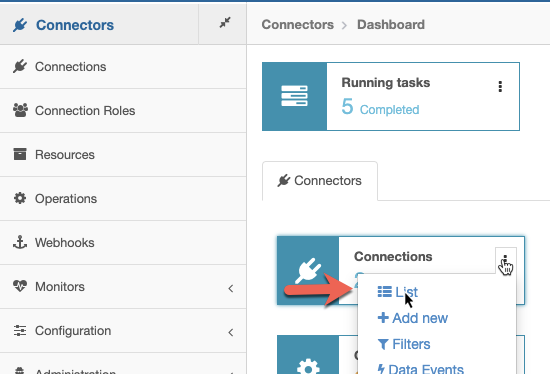
-
Update the ePlanSoft Connection. Click on the three black dots and click Edit.
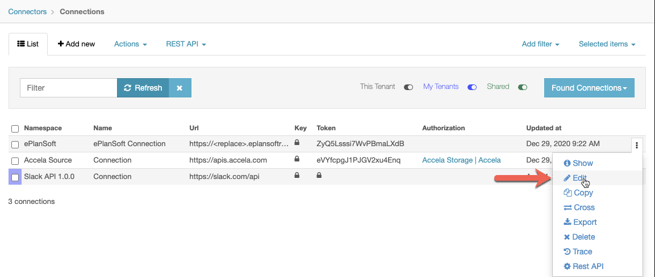
-
Update the URL and click Save.
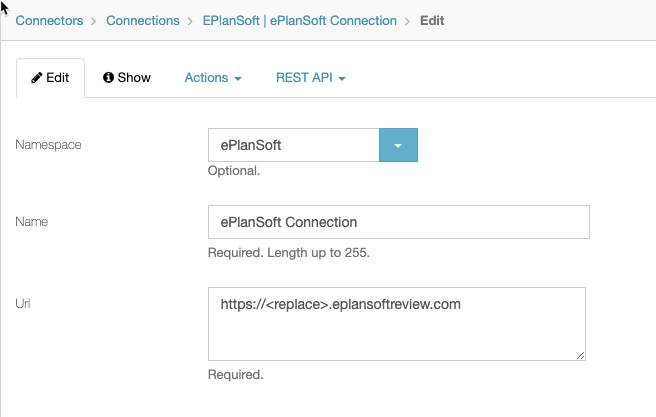
Sessions
-
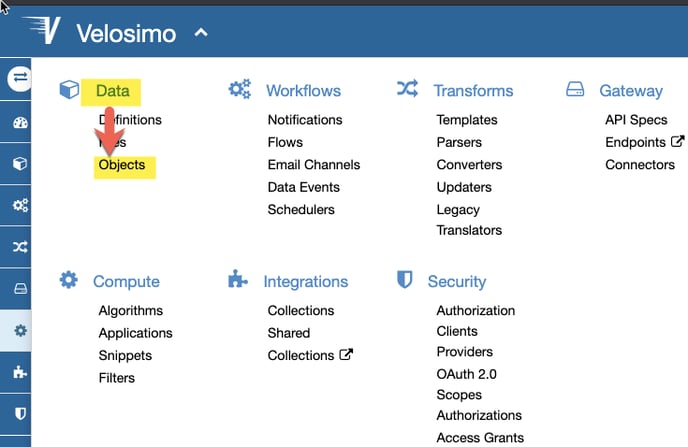
Go to Data> Object and click on EPlanSoft.
-
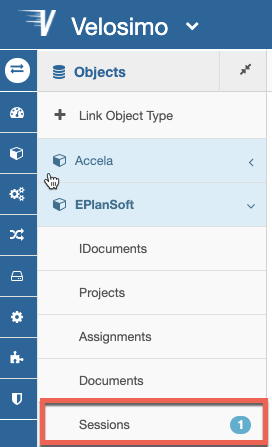
Click on Sessions.
-
Click the Add new button.
-
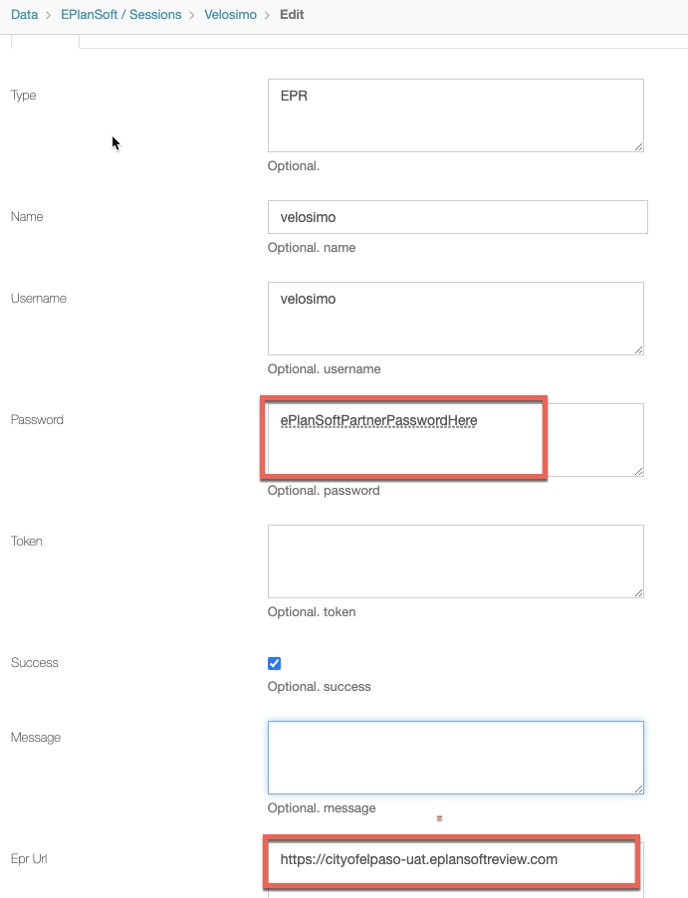
Add a new Session.
| 1 |
Setting Id |
Value |
Description |
| 2 |
Type |
EPR |
Must be all CAPS |
| 3 |
Name |
velosimo |
|
| 4 |
username |
velosimo |
|
| 5 |
Password |
TBD |
Different per agency and pre environment |
| 6 |
EPR URL |
ePlanSoft URL |
Agency’s ePlanSoft URL. Make sure there is not slash at the end of the URL. |
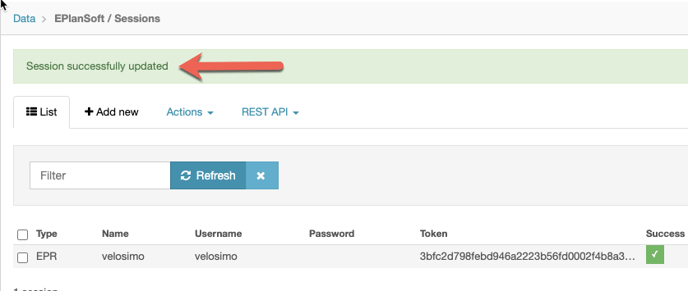
5. Click the Save button. A Session successfully updates message displays.
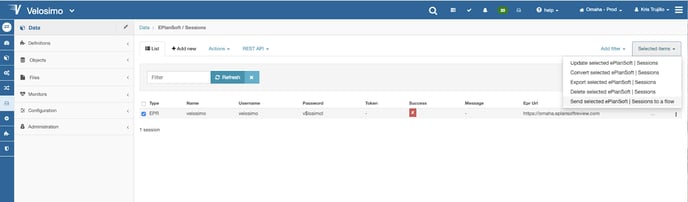
6. After saving the settings, the ePlanSoft | Authenticate flow needs to be executed. Mark the check box next to the Session. Then click on the Selected Items and select the” Send selected ePlanSoft | Session to flow.”
Watch how to Authenticate the ePlanSoft connection
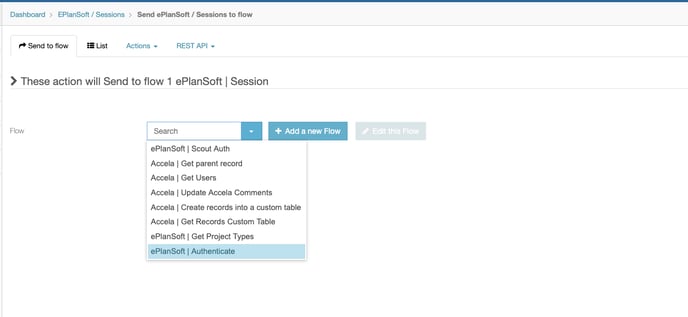
7. On the Send to Flow screen, select the ePlanSoft | Authenticate flow and click the Send to Flow button to execute.
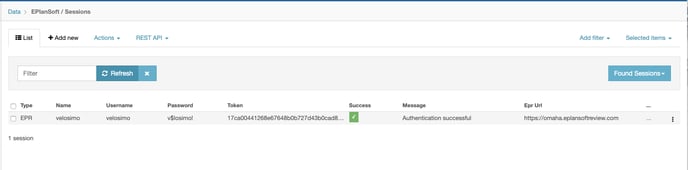
8. Refresh the Sessions list to see the results of the execution. If successful, the Success box will be green, and the Message will say “Authentication successful.” If some other Message appears, there is an issue that must be resolved first.
Create an EPlanSoft refresh Token
After successfully authenticating and creating a session, the next step is to schedule the EPR token refresh.
Watch how to create an ePlanSoft refresh token.
-
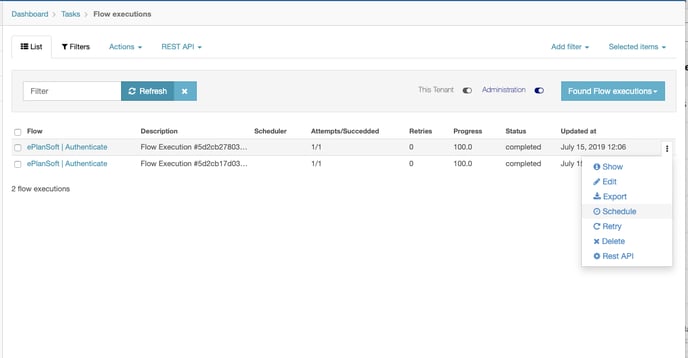
Go to the Tasks screen and find the most recent ePlanSoft | Authenticate entry.
-
Click on the three black dots and go to Schedule on the right menu.
-
Select Schedule.
-
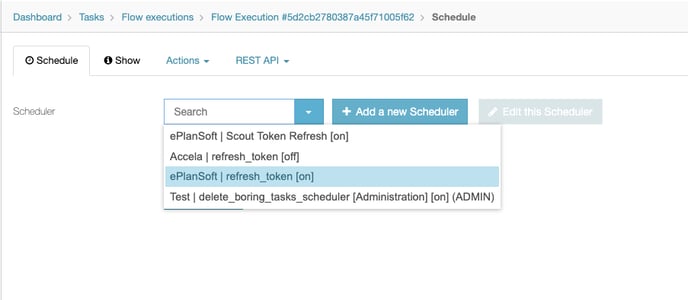
On the Schedule screen, select ePlanSoft | refresh_token [on] from the list of options and click Schedule
-
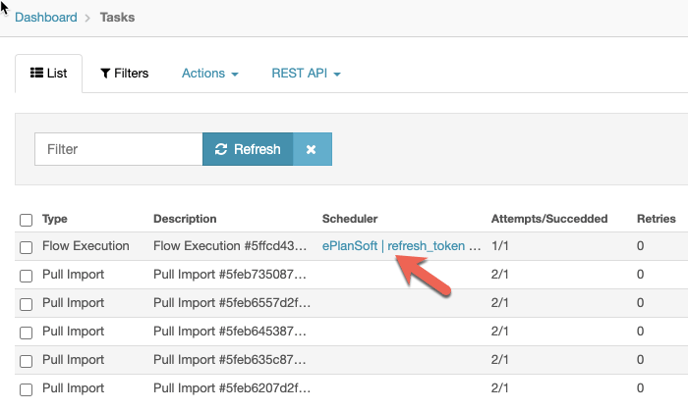
Click on the Scheduler link.
-
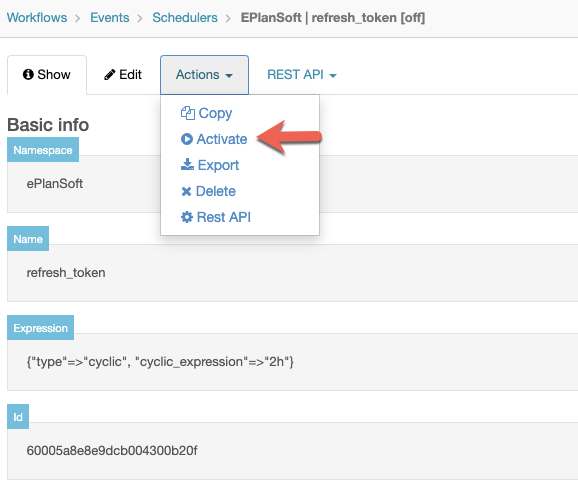
Click on the Actions tab and select Activate.
-
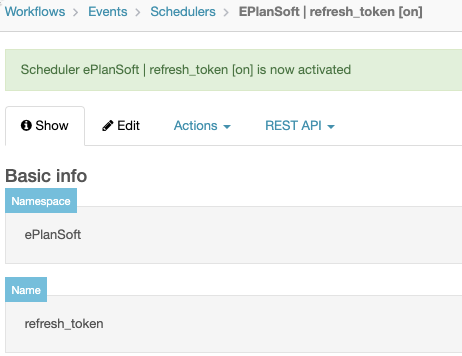
A message displays saying the refresh token is now activated.
Project Type Mappings
After the project type mappings are added to the Velosimo settings, they need to be mapped to the Accela records. This setting ensures only mapped (Accela records) are sent back and forth between Accela and ePlansoft.
Watch how to map the ePlanSoft projects to Accela records
-
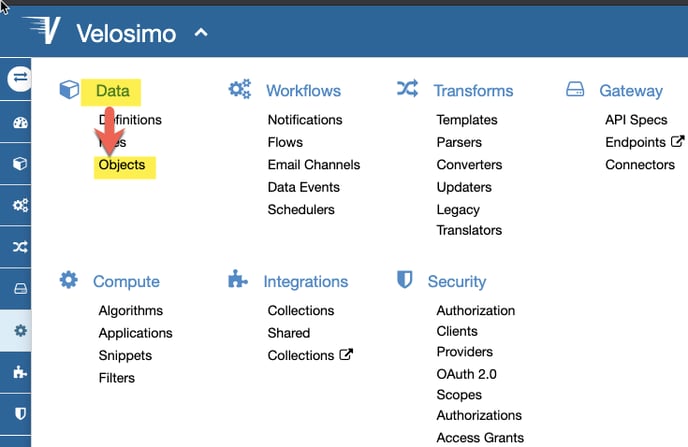
Go to Data> Object and click on EPlanSoft.
-
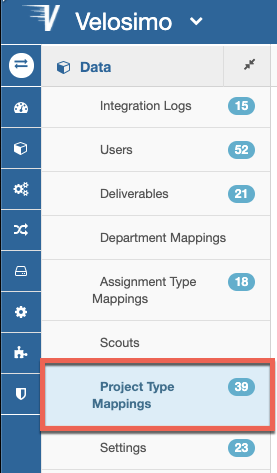
Click on the Project Type Mappings.
-
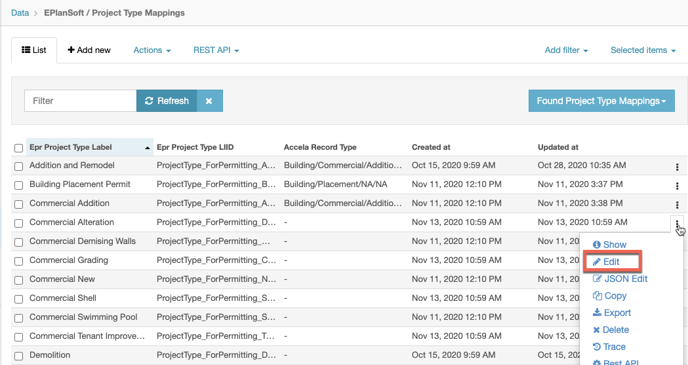
On the screen's far right side, click the three black dots—a drop-down menu displays. Click the Edit button.
-
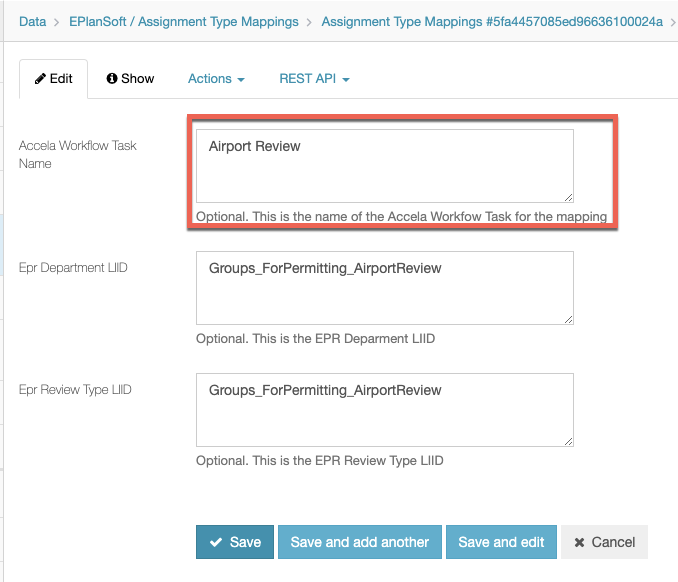
Enter the Accela Record Types four-level structure.
-
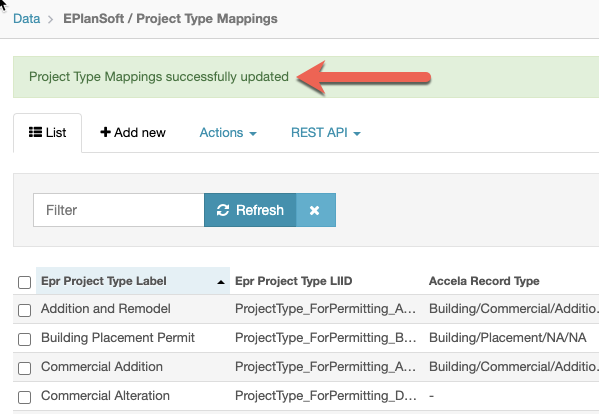
Click the Save button. A message displays that the Project Type Mappings successfully update.
Assignment Type Mappings
The ePlanSoft groups are in the Velosimo Connect admin. The Accela workflow tasks are then are mapped to the assignments inVelosimo.
Watch how to map the Accela records to the ePlanSoft projects
-
Go to Data> Object and click on EPlanSoft.
-
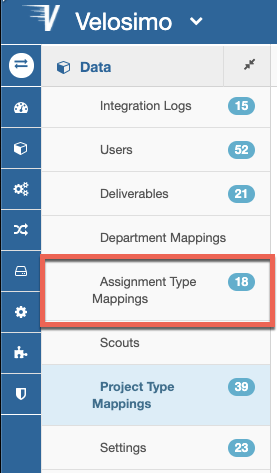
Click on the Assignment Type Mappings.
-
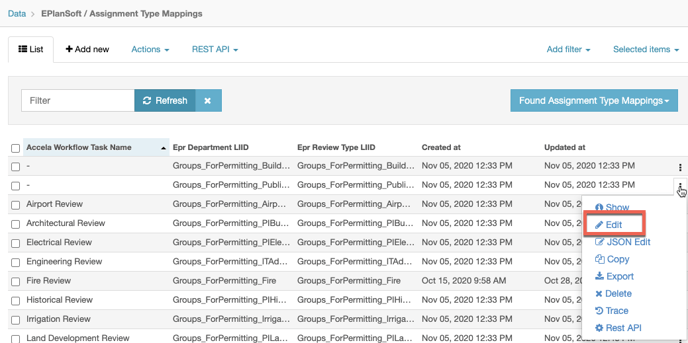
On the screen's far right side, click the three black dots—a drop-down menu displays. Click the Edit button.
-
Enter the Accela workflow task name.
-
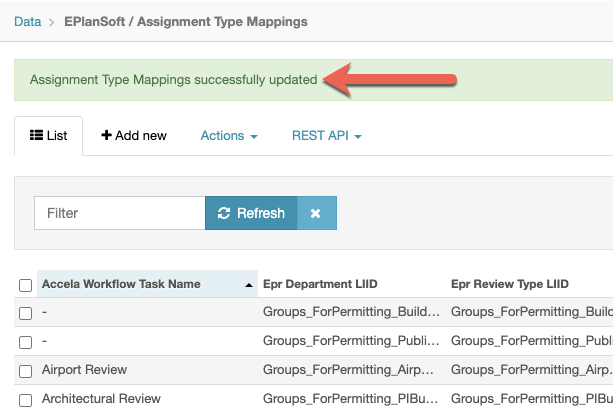
Click the Save button. A message displays that the Assignment Type Mappings successfully updated.