
ePlanSoft Settings
- Velosimo Configuration
- Accela Configuration
- Solution
- Updating the Project ID
ePlanSoft Settings
Velosimo suggests that you use the standard ePlanSoft settings that are loaded. However, all the settings are editable, and new settings can be added at any time.
-
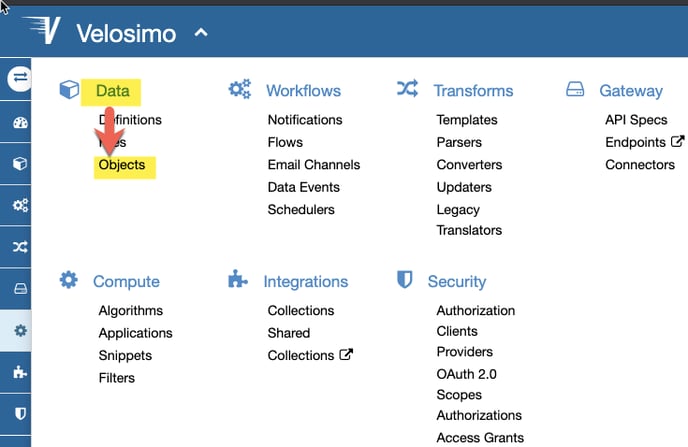
Go to Data> Object and click on EPlanSoft.
-
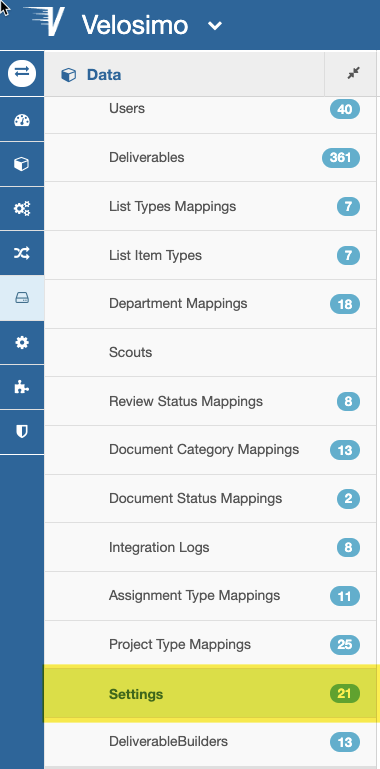
Click on the Settings.
-
Use the table below for reference for updating and adding new Settings.
| 1 |
Setting Id |
Value |
Description |
| 2 |
ACCELA_APPROVED_WORKFLOW_TASKS |
Approved Deliverable |
Velosimo recommends using this as part of a standard Implementation. The workflow status that sends back the Approved stamped plans from EPR to Accela. If this setting is changed, the workflow code sendTaskEventToVelosimo workflow code needs to be updated to match this setting. |
| 3 |
ACCELA_ATTACHMENTS_DOC_CATGROUP_MODULE |
TBD |
Document Category/Group for any attachments that are added from EPR and sent back to Accela. To configure this, add the Module; it is optional. This setting is configurable at the record type level. The module is Permits, and the record type is PERMITS/BUILDING/COMMERCIAL/NEW/BUILDING.
|
| 4 |
ACCELA_CORRECTIONS_REPORT_DOC_CATGROUP_MODULE |
TBD |
Document Category/Group for the Corrections Report sent from EPR and to Accela. To configure this, add the Module; it is optional. This setting is configurable at the record type level. The module is Permits, and the record type is PERMITS/BUILDING/COMMERCIAL/NEW/BUILDING.
|
| 5 |
ACCELA_CORRECTIONS_WORKFLOW_TASKS |
Correction Deliverable
|
Velosimo recommends using this as part of a standard Implementation. The status that sends back the corrections deliverable from EPR to Accela. If this setting is changed, the sendTaskEventToVelosimo workflow code needs to be updated to match this setting. |
| 6 |
ACCELA_DOC_STATUS_APPROVED |
Approved |
Velosimo recommends using this as part of a standard Implementation. Document status in Accela for plans approved. |
| 7 |
ACCELA_DOC_STATUS_APPROVED_W_COMMENTS |
Approved With Conditions |
Velosimo recommends using this as part of a standard Implementation. Document status in Accela for plans approved with conditions. |
| 8 |
ACCELA_DOC_STATUS_CORRECTIONS |
Revisions Required |
Velosimo recommends using this as part of a standard Implementation. Document status in Accela for plans that require corrections. |
| 9 |
ACCELA_DOC_STATUS_AFTER_REVIEW |
Review Complete |
Velosimo recommends using this as part of a standard Implementation. Document status in Accela for plan reviews that are complete. |
| 10 |
ACCELA_DOC_STATUS_ROUTED |
Routed for Review |
Velosimo recommends using this as part of a standard Implementation. Document statuses in Accela for plans sent to EPR that are ready to be reviewed. If this setting is changed, the sendTaskEventToVelosimo workflow code needs to be updated to match this setting. |
| 11 |
ACCELA_MODULES |
Building |
All the modules in Accela. List all modules using EPC. |
| 12 |
ACCELA_ROUTE_DOC_CATEGORIES |
Building Plans |
All the documents are sent from Accela to ePlanSoft for review. i.e., Site Plans, Plans, Plumbing Plans, Calcs, Calculations. |
| 13 |
ACCELA_ROUTE_DOC_STATUS |
Uploaded |
Velosimo recommends using this as part of a standard Implementation. |
| 14 |
ACCELA_SUBTASK_STATUS_APPROVED |
Approved |
Velosimo recommends using this as part of a standard Implementation. This setting is the workflow subtask status for plans that are approved. |
| 15 |
ACCELA_SUBTASK_STATUS_CANCELLED |
Canceled |
Velosimo recommends using this as part of a standard Implementation. This setting is the workflow subtask status for plans that are canceled. |
| 16 |
ACCELA_SUBTASK_STATUS_CORRECTIONS |
Corrections Required |
Velosimo recommends using this as part of a standard Implementation. This setting is the workflow subtask status for plans that require correction. |
| 17 |
ENABLE_RECORD_ID_FLOW_DESCRIPTION |
true |
Always set this to true. This setting displays the Accela record ID in the Description column in the Velosimo flow execution logs. Making searching the project logs easy and helps with troubleshooting issues. |
| 18 |
EPR_DAILY_ADMIN_APPNAME |
EPR<agency><environment> |
Velosimo provides this information. |
| 19 |
EPR_ADDRESS_ADD_PARCEL |
true |
If true, the parcel comes over from Accela and populates in ePlanSoft. If false, the parcel does not populate in ePlanSoft. This must be lower case to work correctly. |
| 20 |
EPR_ADDRESS_STATE |
States_USA_General_STATE |
This setting sets the State in EPR. Update <STATE> to the desired state. |
| 21 |
EPR_CORRECTIONS_REPORT_MODULE |
1 |
Run the Algorithm get_report_templates. See the Algorithm section on how to run an algorithm. This algorithm lists all the corrections reports and the number they map to for this setting. |
| 22 |
EPR_CORRECTION_REPORT_NAMES |
Corrections by Group and Category.PDF |
List the file names of all the corrections reports. |
| 23 |
EPR_DAILY_ADMIN_APPNAME |
erpadmin<agency><environment> |
Velosimo provides this information for each tenant. |
| 24 |
EPR_TIMEZONE_OFFSET |
TBD |
Velosimo uses GMT. This setting allows us to make changes, so logging is set to the local time zone. Enter the value below for your time zone.
|
| 25 |
VERSION_BY_FILENAME |
false |
Set this to be False. This setting is for agencies that are using the Open Text Adapter. |
Copy a Setting
Copy and edit settings as needed. For example, the agency has multiple corrections reports you can copy and edit the EPR_CORRECTIONS_REPORT_<MODULE>
Watch how to Copy and Edit a Setting.
-
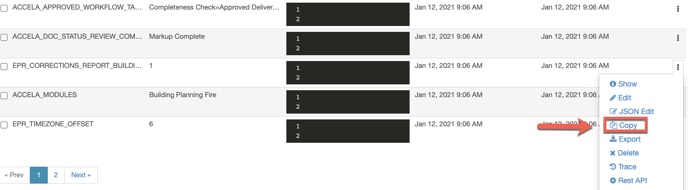
Go to the Setting you want to copy. Click the three black dots—a drop-down menu displays. Click the Copy button.
-
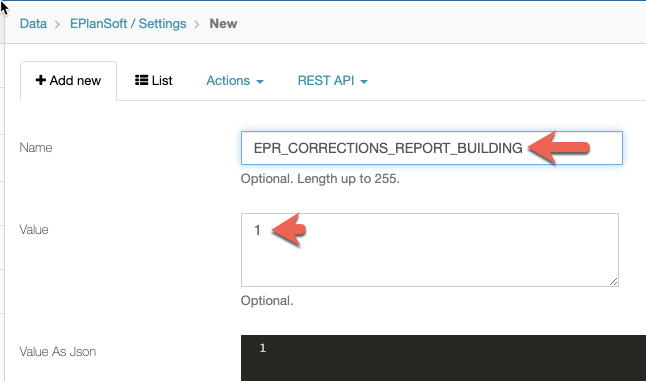
The setting is copied and now needs to be updated.
-
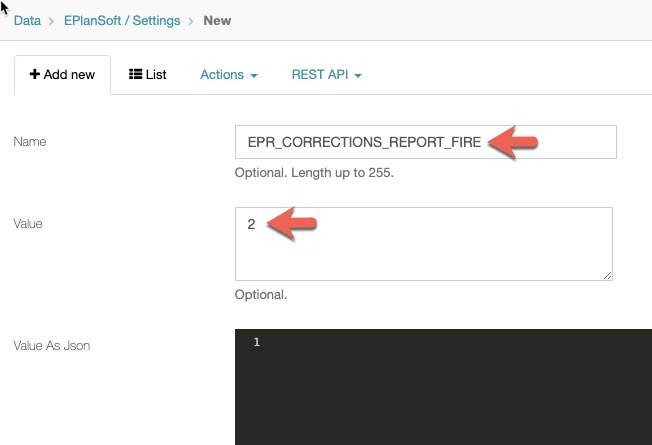
Edit the Name, Value, and Value As Json, if applicable.
-
Click the Save button.
Add New Settings
-
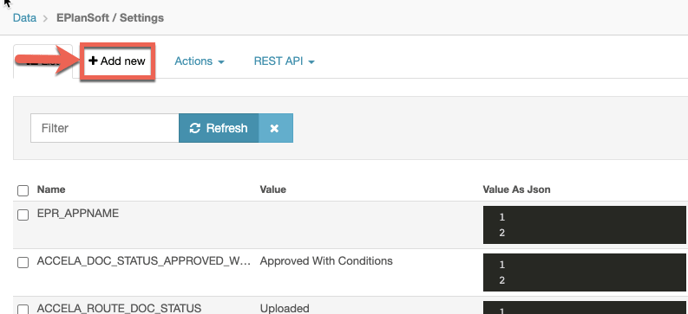
Click the Add new button.
-
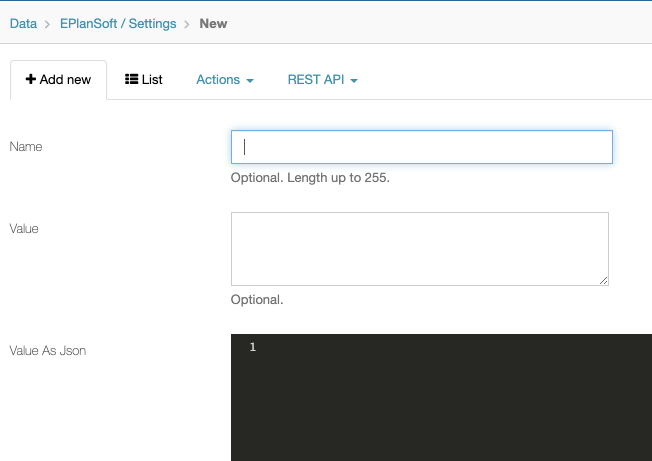
Enter a Name, Value, and Value As Json, if applicable.
-
Click the Save button.
Edit Existing Settings
-
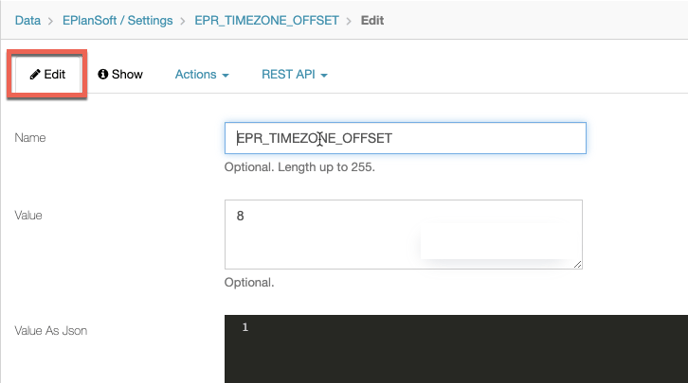
Go to the Setting you want to edit. Click the three black dots—a drop-down menu displays. Click the Edit button.
-
Edit the Name, Value, and Value As Json, if applicable.
-
Click the Save button.